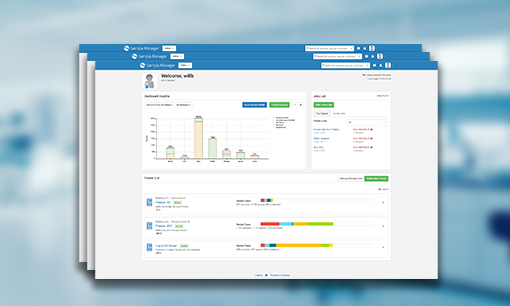
The LabKey Server’s proteomics solution (originally released under the name “CPAS” , short for Computational Proteomics Analysis System), is a web-based system for managing, analyzing, and sharing high volumes of tandem mass spectrometry data.
Normally users of LabKey Server will use the web-based UI to perform a search of their sample(s) (see the Search and Process MS2 Data page of the documentation). However, it is possible to initiate a search of your samples from the command line or via script.
NOTE: In order to initiate a search using the command line, you will need to have previously created, configured and used a MS2 project on your LabKey Server. If you have not done this, please see the Proteomics Tutorial or Proteomics documentation
In order to submit a MS/MS search to the LabKey Server, you will need to specify five peices of information:
- LabKey MS2 Project where the search will be submitted
- File System path to the directory where the files, to be searched, are located
- List of the files to be submitted
- Type of search to be submitted (XTandem, Sequest or Mascot)
- Search Protocol to be used during search
For the sake of this example code, I am going to assume
- LabKey Server URL =
http://test.labkey.com/labkey
- Labkey Server user email =
exampleUser@labkey.com
- password =
examplePassword1
- LabKey Folder/Project where the search will be submitted =
examples/MS2
- The project name =
examples
- The Pipeline Root for the
examples/MS2 folder points to /labkey/examples/pipeline
- The following files are located in the
/labkey/examples/pipeline/sampleName directory
example-File-01.mzXML
example-File-02.mzXML
example-File-03.mzXML
example-File-04.mzXML
example-File-05.mzXML
- MS/MS search type =
Sequest
- Search protocol =
exampleProtocol
- The search protocol must already exist and have been used atleast once.
- The search will be submitted from the command line on the LabKey Server itself.
- This not a requirement. I chose to submit the search from the LabKey Server itself for simplicity sake.
Below is example code for submitting MS/MS searches in both Python and using shell script and wget. If you are using another language, it should be trival port these example to your languange of choice.
Python
The commands below have been tested using Python 2.6 and 2.7.
In order to submit a search to the LabKey Server, we will need to be logged in. We will do this by sending the authentication information to the serve during the search submission.
# Import required modules for this example
import os
import sys
import urllib2
import urllib
import optparse
import cookielib
import base64
# Create HTTP object and associated cookie jar for the MS/MS Search
cj = cookielib.LWPCookieJar()
cookie_handler = urllib2.HTTPCookieProcessor(cj)
# Create the opener
opener = urllib2.build_opener(cookie_handler)
# Create the Basic Auth Header to contain the user name and password
cpasEmail = 'exampleUser@labkey.com'
cpasPass = 'examplePassword1'
authHeader = base64.encodestring("%s:%s" % (cpasEmail, cpasPass))[:-1]
authHeader = "Basic %s" % authHeader
You can find out more about the why this is necessary in this blog entry. Now that the HTTP object has been prepared, we can create the URL and POST data to be submitted.
# Create the URL for the LabKey Server
cpasUrl = 'http://test.labkey.com/labkey'
folderPath = 'examples/MS2'
dirPath = '/labkey/examples/pipeline/sampleName'
pipelineRoot = '/labkey/examples/pipeline'
searchType = 'Sequest'
protocolName = 'exampleProtocol'
submitUrl = cpasUrl.rstrip('/') + "/ms2-pipeline/" + folderPath + \
"/searchSequest.view"
# Search the directory path for all mzXML files. All mzXML files in the
# directory will be searched.
files = os.listdir(dirPath)
submitList = \
[dirPath.rstrip('/') + "/" + x for x in files if 'mzxml' in x.lower() ]
# Create the data to be POSTed to the LabKey Server.
submitPath = dirPath.replace(pipelineRoot, "")
postData = [
('path',submitPath),
('searchEngine',searchType),
('runSearch','true'),
('protocol',protocolName)
]
# Add all files in the submitList to the data to be POSTed to the server
for f in submitList:
postData.append(('file',os.path.basename(f)))
NOTE: In this example, we are submitting a SEQUEST search. If you were to submit an X!Tandem search the searchType variable should be X!Tandem and the submitUrl would end in searchXTandem.view. If you were to submit a Mascot search, the searchType should be Mascot and the submitUrl would end in searchMascot.view.
The last step will be to submit the search to the LabKey Server. If the response contains the word SUCCESS, then the search has been successfully submitted. If the response begins with the text ERROR, then the search submission has failed. The error message from the LabKey Server will be printed to the screen.
try:
resp = opener.open(urllib2.Request(submitUrl, None,
{"Authorization": authHeader }), urllib.urlencode(postData))
html = resp.read()
# Check response to see if there was an error during the submission
# The POST response will being with "SUCCESS" of the submission was
# successfully submitted. If there was an error during submission the
# response will begin with the text "ERROR=" In the case of error, the
# information after the "=" is the error message.
if html.find('SUCCESS') != -1:
print "All mzXML files in "+dirPath+" were successfully submitted to " \
+ resp.geturl()
print "Goto http://" + cpasUrl.rstrip('/') + "/pipeline-status/" \
+ folderPath + "/showList.view to see the status of this search."
else:
print "Search submission failed for mzXML files in " + dirPath
print "Submit URL = "+ resp.geturl() + " The error message was: " \
+ html
except urllib2.HTTPError as e:
print "There was problem while attempting to submit the search at " \
+ e.geturl() + ". The HTTP response code was " + str(e.getcode())
except urllib2.URLError as e:
print "There was problem connecting to the CPAS server at " + cpasUrl \
+ ". The server is unavailable. Execution " + sys.argv[0] \
+ " is being stopped. "
print "HTTP client error was: "+ format(e)
Shell script and wget
The example below, assumes you are using a *nix type computer; such as Linux, Mac OSX or Solaris. In addition, you must have the tool wget installed on the computer.
In order to submit a search to the LabKey Server, we will need to be logged in. We will do this by sending a request the LabKey Server login page with the username and password. We will then capture all the HTTP response headers and cookies and store them in a file for later use.
# Variables
cpasUrl=http://test.labkey.com/labkey
cpasEmail=exampleUser@labkey.com
cpasPass=examplePassword1
wget --server-response --delete-after $cpasUrl/Login/login.post \
--post-data "email=$cpasEmail&password=$cpasPass" \
--save-cookies cookies.cpas --keep-session-cookies
You can find out more about the why this is necessary in this blog entry. Now that we have logged into the LabKey Server and stored the credentials for later use, we can create the URL and POST data to be submitted.
# Variables
folderPath=examples/MS2
dirPath=/labkey/examples/pipeline/sampleName
pipelineRoot=/labkey/examples/pipeline
searchType=Sequest
protocolName=exampleProtocol
# Create list of files to be submitted for searches
lf=""
for file in $(ls -1 ./$dirPath/*.mzXML)
do
lfile=$(basename $file)
echo $lfile
lf="${lf}&file=${lfile}"
done
submitPath=$(basename $dirPath)
The last step will be to submit the search to the LabKey Server. If the response contains the word SUCCESS, then the search has been successfully submitted. If the response begins with the text ERROR, then the search submission has failed. The error message from the LabKey Server will be printed to the screen.
# Submit the search to the LabKey Server
wget "$cpasUrl/ms2-pipeline/$folderPath/searchSequest.view" --post-data \
"path=$submitPath&searchEngine=$searchType&runSearch=true&protocol=$protocolName$lf" \
--load-cookies cookies.cpas -O searchStatus.txt
status=$(grep -i SUCCESS ./searchStatus.txt)
if [ -n "$status" ]
then
echo "All mzXML files in $dirPath were successfully submitted to \
$cpasUrl/ms2-pipeline/$folderPath/searchXTandem.view"
echo "Goto $cpasUrl/pipeline-status/$folderPath/showList.view \
to see the status of this search."
elif
cat searchStatus.txt
# Clean up
rm searchStatus.txt
rm cookies.cpas
NOTE: In this example, we are submitting a SEQUEST search. If you were to submit an X!Tandem search the searchType variable should be X!Tandem*and the URL, in wget command, would end in searchXTandem.view. If you were to submit a Mascot search, the searchType should be Mascot and the URL, in wget command, would end in searchMascot.view.
Share this: